
Make it yours
Settings: preferences, keys, apps, and memory
Find each Settings tab, change response preferences, manage provider keys and app access, and control personal memory.
Before you start
Section titled “Before you start”Open the avatar menu and choose Settings. The modal contains five tabs: General, API keys, Connected apps, From assistants, and Memory. The settings apply to your account unless a control specifically refers to a workspace. Closing the modal does not remove saved provider keys or connections.
Use Connected apps for MCP servers that models inside Neurothread can call. Use From assistants for another client connecting to Neurothread. These are different directions of access. Read Connected apps or Use Neurothread from assistants for the relevant guide.
When to use this
Section titled “When to use this”Visit Settings when you want to adjust how new answers are generated, store or remove a supported model-provider key, manage app connections, grant an external assistant access, or review personal Memory. For profile name or password changes, open Personal Info from the avatar menu instead. Subscription actions are under Manage Subscription or Upgrade plan, not in a Settings tab.
- General: switch Hover hints on or off, set Default response length for new nodes, and review Improve decision models. You can still set a different length on an individual message. The decision-model control concerns requests to Neurothread’s decision features and what you do afterward; it is not the personal Memory switch.
- API keys: connect, edit, or remove keys for OpenAI, Anthropic, or Google. A provider marked Active has a stored key; the key itself is not displayed. A paid plan is required for BYOK, and not every model supports it. See BYOK.
- Connected apps: manage MCP server connections used by models in your Neurothread conversations. Account-level saved connections are separate from enabling one in a particular workspace. Review requested tool actions before approving them.
- From assistants: choose read-only or read-and-write access for an external MCP client. A write-enabled assistant can create workspaces and ask models, using your credits. Consult the official connection guide for client-specific setup.
- Memory: check Remember things about me, inspect or edit saved sections, and add Always remember notes. Switching off the main control stops both learning and use but keeps saved data. Use the delete controls if you want the saved Memory erased.
- Reopen the relevant tab later to verify the change. For account data and deletion requests, read the Privacy and data guide and the linked policy.
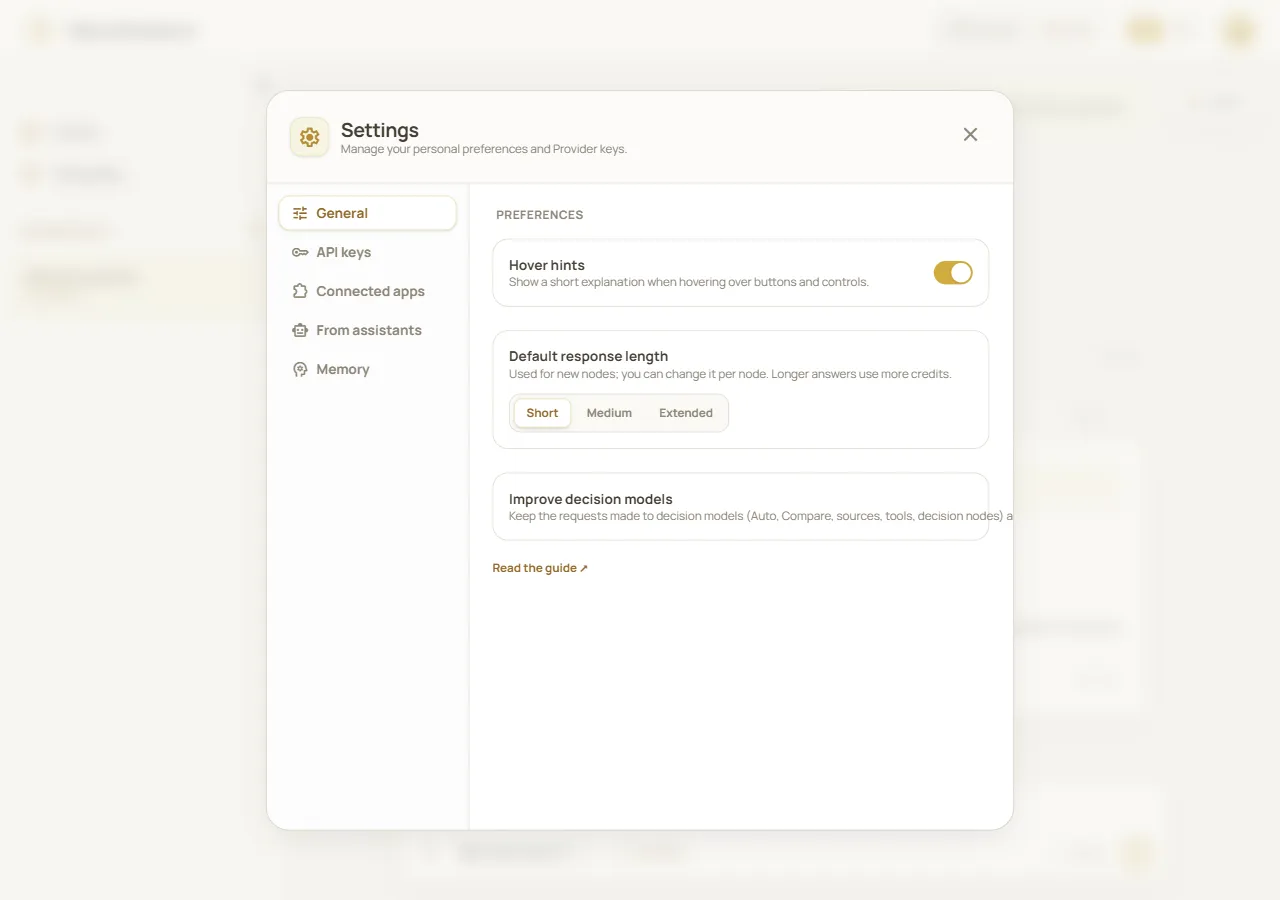
General preferences in Settings; other tabs manage keys, connections, and Memory. Fictional demonstration data; simulated API, not a live account.
Worked example
Section titled “Worked example”If you want new answers to be more detailed, open Settings → General and change Default response length. This changes the starting length for new nodes; it does not rewrite existing answers. If you also want a model to use your own provider billing, configure its key separately under API keys and check which model routes support it.
What happens next
Section titled “What happens next”General preference controls affect later use, while connected apps and provider keys remain available until you change or remove them. The workspace’s MCPs control still decides which saved app connections are enabled there. Memory has its own state and data-management controls; changing Improve decision models does not switch Memory on or off. For another assistant, use the permissions and revocation details in From assistants.
Cost and limitations
Section titled “Cost and limitations”Longer responses may use more credits. BYOK requires an eligible paid plan and an eligible provider/model; provider charges are separate from Neurothread usage. MCP tool use can have external service permissions, limits, or charges, and write-enabled assistant requests can spend Neurothread credits. Settings does not show a complete data export or an in-app account-deletion control. Check Billing and subscriptions for plan management and the privacy policy for data-rights requests.
Troubleshooting
Section titled “Troubleshooting”- A tab or feature is missing: confirm you are signed in and reopen Settings. Availability can depend on account or plan.
- A key says Active but a model request fails: that label indicates storage, not prior validation. Check the provider and selected model; see BYOK.
- A connected app is not used: check its Settings connection and the separate workspace-level MCPs switch.
- Memory seems unchanged after switching it off: the saved information remains stored, but the main off switch stops both learning and use. To erase it, use Delete section or Delete all memory in the Memory tab.
- You need subscription or privacy help: use the account menu’s billing entry or the contact and rights instructions in the privacy policy.