
Models & context
Images and documents: add useful context
Upload or import images, text-based documents, and public links through Library, then attach them to a prompt safely.
Before you start
Section titled “Before you start”Open Library from the sidebar, or use Attach images or documents in a prompt. The library has Images and Documents tabs. Items you upload or import are saved for reuse in workspaces. Images and documents share the storage quota shown in the library, which varies by plan.
Supported images are PNG, JPEG, WebP, and GIF, up to 3 MB each. You can attach up to four images per message. Only a model with vision can interpret image contents. Supported documents include PDF, DOCX, XLSX, PPTX, CSV, Markdown, HTML, JSON, YAML, XML, plain text, and code files.
When to use this
Section titled “When to use this”Attach an image when a model needs to interpret a chart, screenshot, or visual reference. Attach a document when its readable text should inform an answer, a Build project, or a decision node. Import a public page or document link when you want its text available as reusable library material.
- Open Library in the sidebar. To attach material while writing, click the paperclip labeled Attach images or documents; the picker opens the same library.
- Select Images or Documents. On the Documents tab, choose Upload to select local files, drag files into the library, or paste a public page/document URL in the link field and click Import.
- Wait for the upload or import to finish. In the library, review the item name and, for a document, its extracted character count. The preview lets you check the text that will be available to the model.
- To attach an existing item, open the picker from a prompt, select the relevant image or document, and click Attach. You can also paste an image into the prompt. Remove an attachment before sending if it is not needed.
- Select a vision-capable model if you attached images. Documents are supplied as extracted text, so choose a model that can handle the resulting context.
- Ask a specific question about the material. For example: “Compare the two pricing tables in this image and tell me which row changes most between the Basic and Plus plans.”
- To free storage, open the item in Library, choose Delete, and confirm only after checking whether nodes still rely on it.
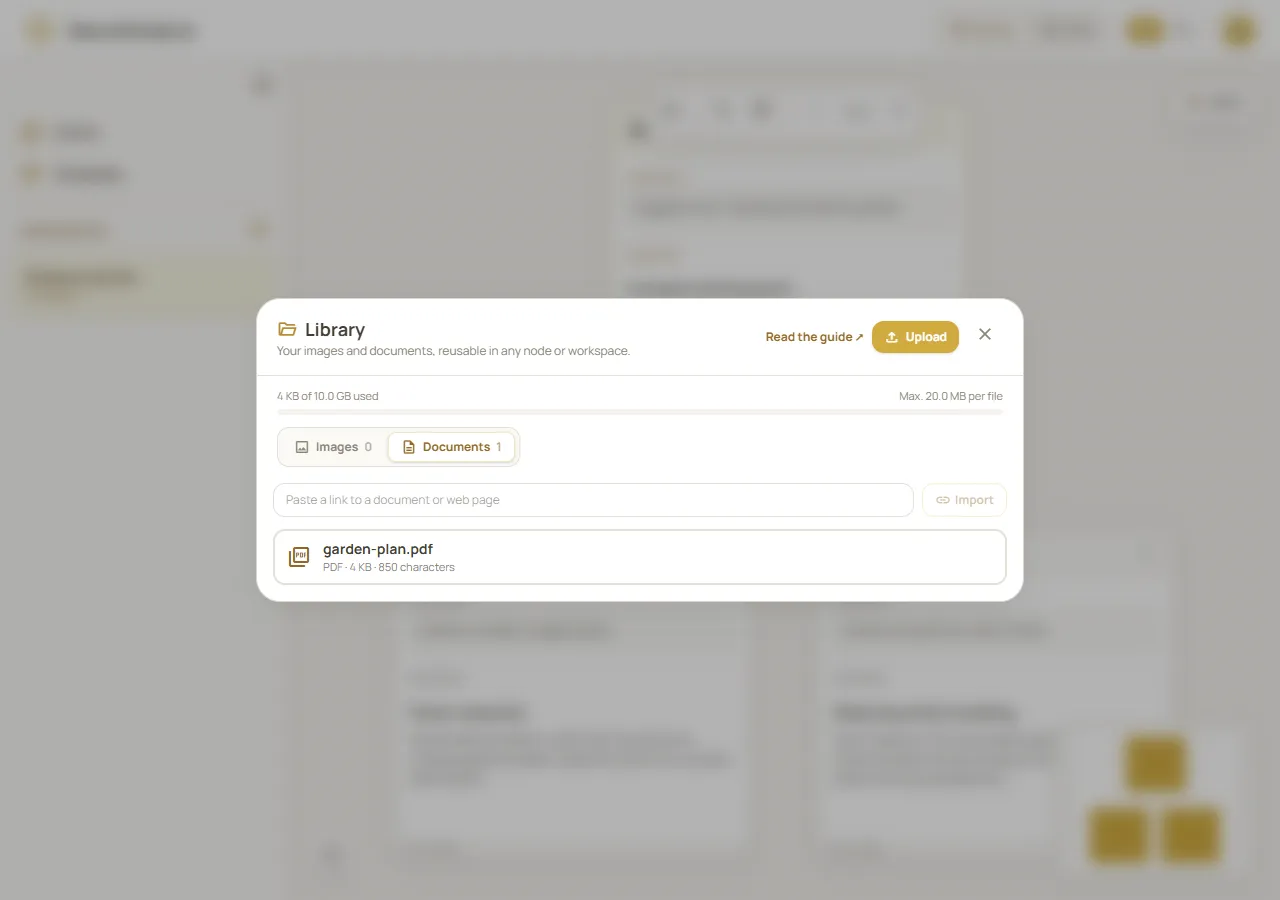
Library material ready to review and attach to a prompt. Fictional demonstration data; simulated API, not real uploaded files or account storage.
Worked example
Section titled “Worked example”Upload a text-based PDF of a meeting agenda in Documents, open it to verify the preview, then attach it to a prompt: “Using this agenda, draft a 30-minute facilitation plan. Preserve the order of topics and flag items with no owner.” The file is available as context to the answer and later branches. If you have a screenshot of a chart instead, upload it under Images and select a model with vision.
What happens next
Section titled “What happens next”Attached document text and image references become part of the relevant prompt context and can remain available on branches that follow. The library preview is useful for confirming that text extraction succeeded. A web page import is stored as a document for later reuse; links must be publicly reachable. Removing an item from the library frees storage, but nodes that use it will no longer include its document text or show its image.
Cost and limitations
Section titled “Cost and limitations”The maximum document upload is 20 MB per file; up to 10 documents may be attached to a node, and up to three URLs can be imported from a message. Images are limited to four per message and 3 MB each. Scanned PDFs are not processed with OCR; password-protected PDFs and legacy .doc, .xls, and .ppt files are unsupported. Save old Office formats as .docx, .xlsx, or .pptx. Imported pages must be public; private or internal addresses are blocked. Document text may be truncated, and only the extracted text—not visual layout—is provided. Large or lengthy context can affect answer quality and credit use.
Troubleshooting
Section titled “Troubleshooting”- “No text could be read”: check the document preview. A scanned PDF needs a text-based copy or OCR performed before upload; Neurothread does not OCR it.
- Unsupported or old Office format: convert it to a listed supported format, such as
.docx,.xlsx, or.pptx. - Image is too large or rejected: use PNG, JPEG, WebP, or GIF and reduce it to 3 MB or less.
- The model cannot read images: remove the image or select a model marked as vision-capable.
- A link cannot be imported: check that the URL is valid and public, then try again; internal/private network links are not allowed.
- An answer no longer includes an attachment: check whether someone deleted it from Library; deletion removes its content from nodes that referenced it.