
Start here
Quickstart: your first Neurothread workspace
Create a workspace, ask a model, switch views, and keep useful alternatives as branches in Neurothread.
Before you start
Section titled “Before you start”Sign in to Neurothread and open the app. A workspace is a separate place for a conversation tree; creating another workspace gives you a fresh canvas without mixing it with existing work. You can use either Canvas, which shows the whole tree, or Chat, which presents the same workspace as a familiar conversation. Neither view creates a duplicate or a separate history.
You do not need an API key to begin. Choose a model available on your account; models marked Free do not spend credits, though free-model use has a daily limit. The model picker shows choices available to your plan and any provider keys you have connected.
When to use this
Section titled “When to use this”Start here when you want to ask one question, explore alternative answers, or organize a project into a few focused conversations. Use a new workspace when you want a clean topic boundary. Use an input node when you already have notes or images that should be context before any model answers.
- In the sidebar, select New Workspace if you want a separate canvas. Give it a recognizable name so you can find it again.
- In the starting panel, choose LLM to ask a model, Input to save your own text or images first, or Build to make a browser-based web app.
- Type a question in the text box. For an LLM question, choose a model from the picker. You can search by model, provider, or model name; Featured lists selected options and All models by provider opens the full catalog.
- Select Generate for a model answer or Save for an input node. In Chat, press Enter to send and Shift+Enter to add a line break. On Canvas, Ctrl+Enter submits the current prompt; Ctrl+I adds an input node.
- Read the answer. To try a different direction without losing it, click the node’s + on Canvas or use Branch in Chat. The new answer continues from that point.
- Switch between Canvas and Chat in the header whenever another layout suits the task better. Both views show the same saved workspace.
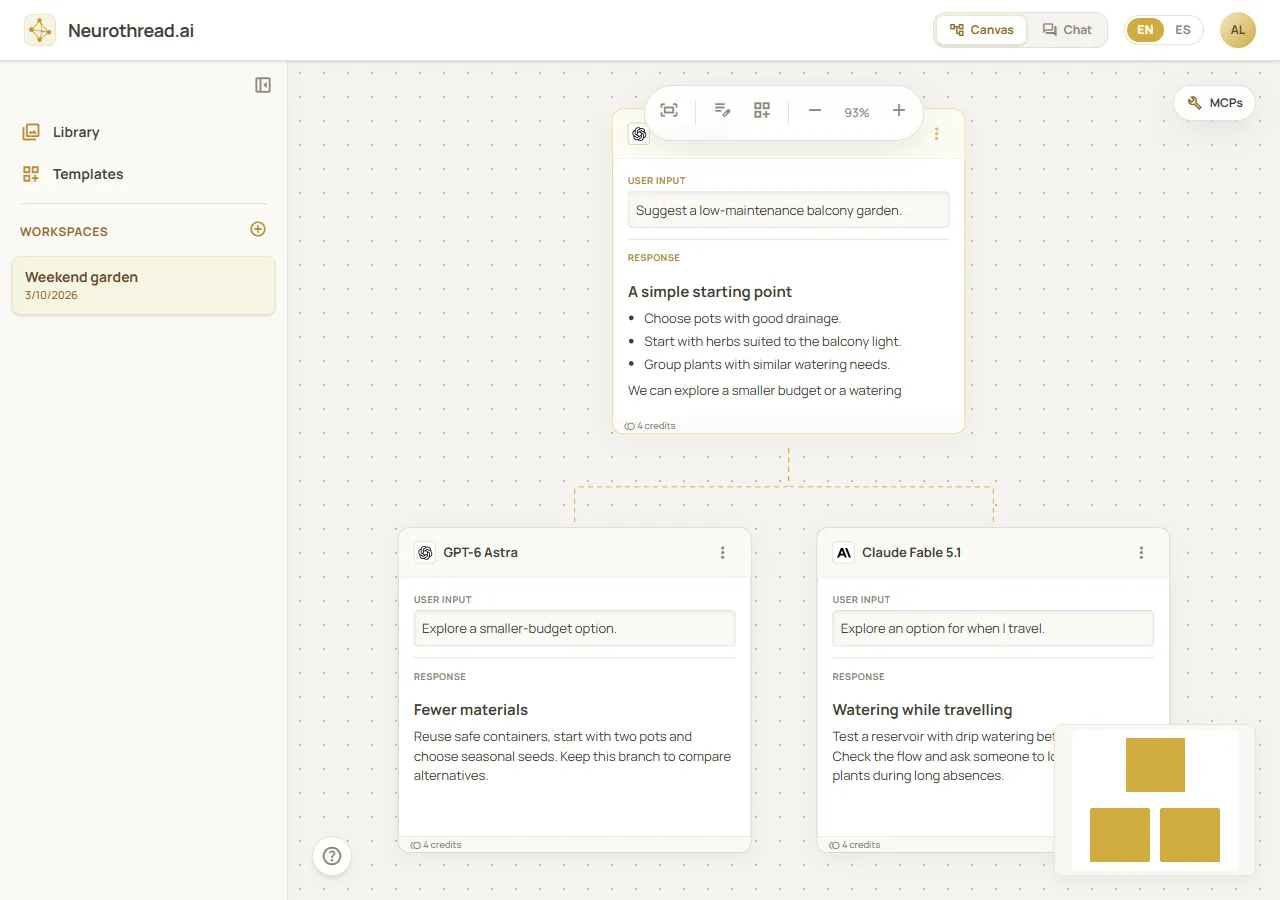
Canvas after saving a conversation and exploring a branch. Fictional demonstration data; simulated API, not a live account or model response.
Worked example
Section titled “Worked example”Create a workspace called “Weekend garden”. Ask: “Plan a low-maintenance balcony garden for a windy, partly shaded apartment. Give me three budget levels and explain the trade-offs.” After the first answer, branch from it and ask for a version suitable for someone who travels every other week. The original plan remains available alongside the alternative.
What happens next
Section titled “What happens next”Continue the most useful branch, compare answers, add a note with Input, or attach material from Library. On Canvas, select multiple nodes and use Merge to create a new node that uses the selected branches as context. In Chat, choose which sibling answer to follow in the carousel. A node’s ⋮ menu has context, export, duplicate, template, and deletion actions where applicable.
Cost and limitations
Section titled “Cost and limitations”A generated answer can use credits; its actual charge appears on the answer. Before sending, choose Short, Medium, or Extended to see an estimate. Longer responses and larger context can cost more. Monthly account quotas and current plan details are shown in the app and at neurothread.ai/pricing; unused monthly credits do not roll over. Stopping an answer keeps text already written, but a stopped Build response does not save a new project version.
Troubleshooting
Section titled “Troubleshooting”- Generate is disabled: enter a non-empty prompt, wait for uploads to finish, and check that an attached image is supported by the selected model.
- Not enough credits: choose a lower-cost model or shorter length, use a model marked Free if available, or review account options.
- The answer is still running: wait for it to finish before sending another message on that path. Use Stop if you want to keep the partial answer instead.
- A branch seems missing: switch the selected answer in Chat’s carousel or return to Canvas, where parallel answers appear as sibling nodes.