
Start here
Canvas and Chat: two views of one workspace
Navigate a reasoning tree on Canvas, follow a branch in Chat, and link, merge, or exclude context without losing alternatives.
Before you start
Section titled “Before you start”Open a workspace with at least one saved node. Canvas and Chat are two views of the same workspace data, not separate conversation modes with separate histories. Canvas is useful when you want to see relationships among many ideas. Chat is useful when you want to read one path from top to bottom, especially on a small screen.
The whole path above a generated node provides its context. Other branches are not included automatically. This makes branching a way to explore alternatives while keeping each answer’s background clear.
When to use this
Section titled “When to use this”Use Canvas to arrange research, connect an input note to a question, merge perspectives, or see several answers at once. Use Chat to focus on a single conversational path and move between parallel answers. Switch views freely when you need both the map and the reading experience.
- Choose Canvas or Chat in the header. Your workspace remains the same when the view changes.
- On Canvas, drag the background to move around and use zoom controls to change scale. Fit View brings nodes into view. Double-click a node to center and zoom on it.
- To continue from an answer, click its +. This creates a child node whose context includes the selected branch. In Chat, use Branch beneath an answer to start a new path from that answer.
- To add your own context, create an Input Node. Use Ctrl+I or the canvas control, enter a note, and select Save. You can also drag a node’s + onto an input node or draft to link it as extra context.
- To combine perspectives, select multiple nodes on Canvas (hold Shift while clicking), then choose Merge. The merged node uses the selected nodes as context. It does not erase the originals.
- To keep a node visible but omit it from future context on its branch, open ⋮ and select Exclude from context. Choose Include in context to restore it.
- In Chat, use the carousel’s side cards or Previous and Next to select among parallel answers. Use Regenerate or Other model beneath an answer to create another alternative; the existing answer stays.
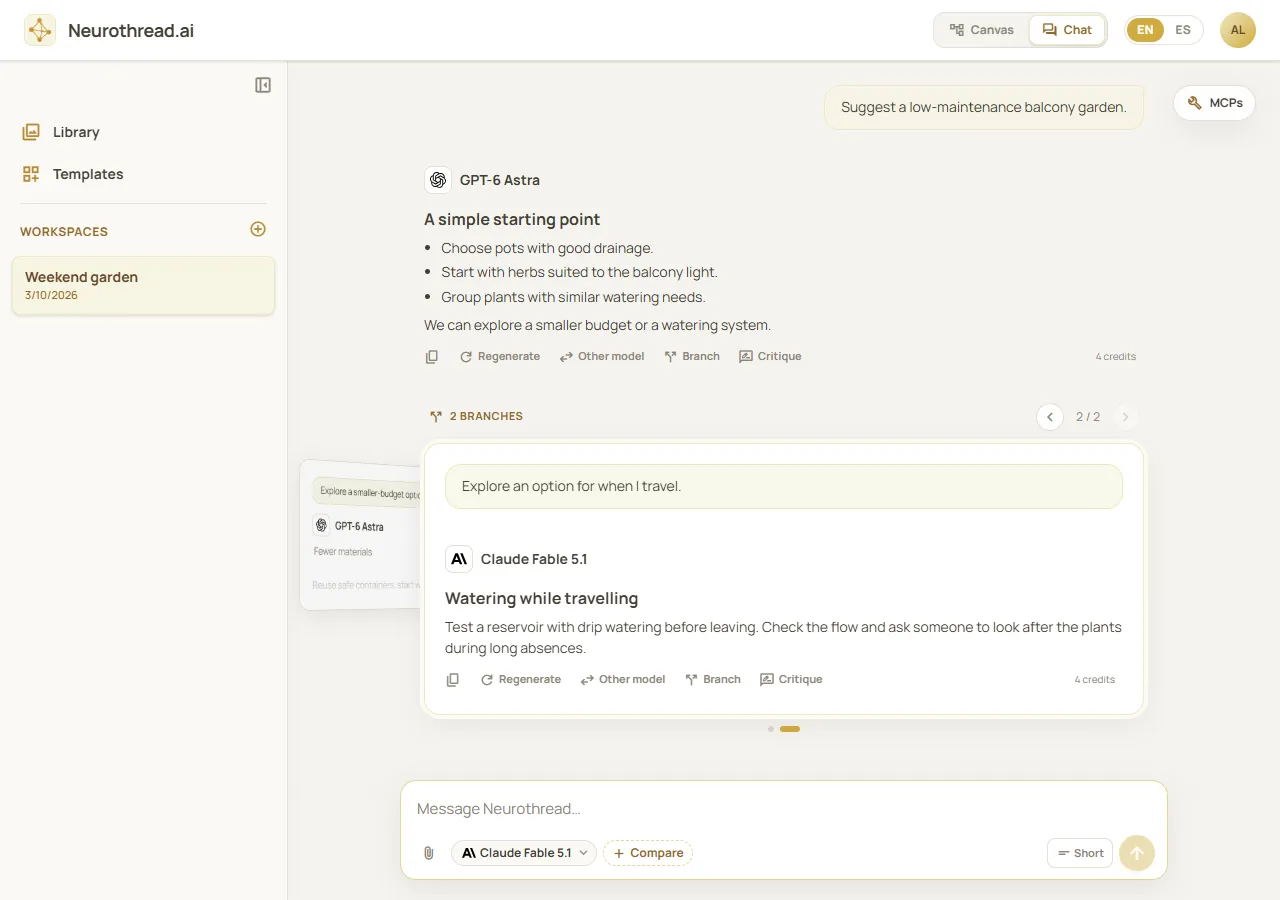
Desktop Chat for reading and continuing one conversation path. Fictional demonstration data; simulated API, not a live account or model response.
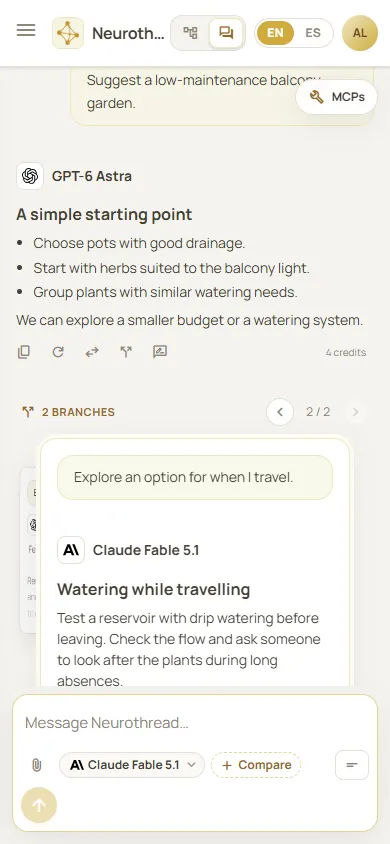
The same Chat workflow on a small screen. Fictional demonstration data; simulated API, not a live account or model response.
Worked example
Section titled “Worked example”Suppose you are choosing a launch date. Save an input note with the deadline and constraints, ask one model for a launch plan, and branch from the answer to ask for a risk-first version. Ask a second model for a separate plan. On Canvas, select both plans and Merge to request a recommendation that considers both. In Chat, move between their parallel answers, then continue from the one you prefer.
What happens next
Section titled “What happens next”Each new answer becomes a node on Canvas and a turn in Chat. The node’s ⋮ menu can rename, duplicate, export a path, save a branch as a template, or manage context. A link is a context relationship; to remove a link, select it and press Delete. Deleting a node is only offered when it has no children, so a branch with descendants is not removed accidentally.
Cost and limitations
Section titled “Cost and limitations”Moving, linking, selecting, and switching views do not generate answers. Generating a new answer, regenerating, or merging with a model can consume credits. More context can increase cost and may exceed a model’s context limit. A link does not copy or rewrite the original node; it makes that node available as context where linked. A merge creates another model answer and keeps the source branches.
Troubleshooting
Section titled “Troubleshooting”- The node’s + is hard to see: hover over or select the node. The control appears near its bottom edge.
- A link will not connect: drag the + from a source node to an input node or draft; saved nodes with no answer may not be valid branch sources yet.
- A selected node is missing from context: check whether Exclude from context is active, and confirm that the node is an ancestor or linked context for the target.
- Chat shows a different answer: parallel answers are siblings. Select the intended card in the carousel before sending the next message.
- The canvas feels lost: use Fit View or reopen the workspace from the sidebar.